
Themify Parallax is a responsive and versatile theme suitable for (one-page) business websites, online portfolios and blogs with a full width design and infinite scroll – although you can opt for a layout with a left or right sidebar and pagination too.
The theme supports natively two WordPress 3 menus; the first just below the header image, the second one in the footer.
Themify Parallax installs with nine custom widgets:
- Banners & Links
- Feature Posts
- Flickr
- List Categories
- List Pages
- Most Commented
- Recent Comments
- Social Links
The theme incorporates five widgetized areas:
- Sidebar
- Social
- three Footer columns
The Social widget is positioned beneath the site title respectively logo, above the main navigation.
The theme adds four modules to the WordPress menu for its custom post types: Portfolios, Highlights, and Teams. Each comes with its own categories.
Basically, Portfolio posts offer you similar options as regular posts. You get control over elements like media alignment, post color, applied fonts and backgrounds. Portfolio post allow you to integrate image, videos, sliders, and galleries – the regular post type also media maps.
A Highlight post consists of text, usually with an image (icon) and a heading. You can use Highlights to display specialties, key services, and (product) features.
The custom post type Teams allows you to create an entry for your team members. Next to creating a text, you have the ability to upload a Featured Image, add your custom dimensions and a position. An individual Team member entry is available through its own custom shortcode.
The Parallax Theme Options panel comprehends four horizontal tabs:
- Settings
- Styling
- Skins
- Transfer
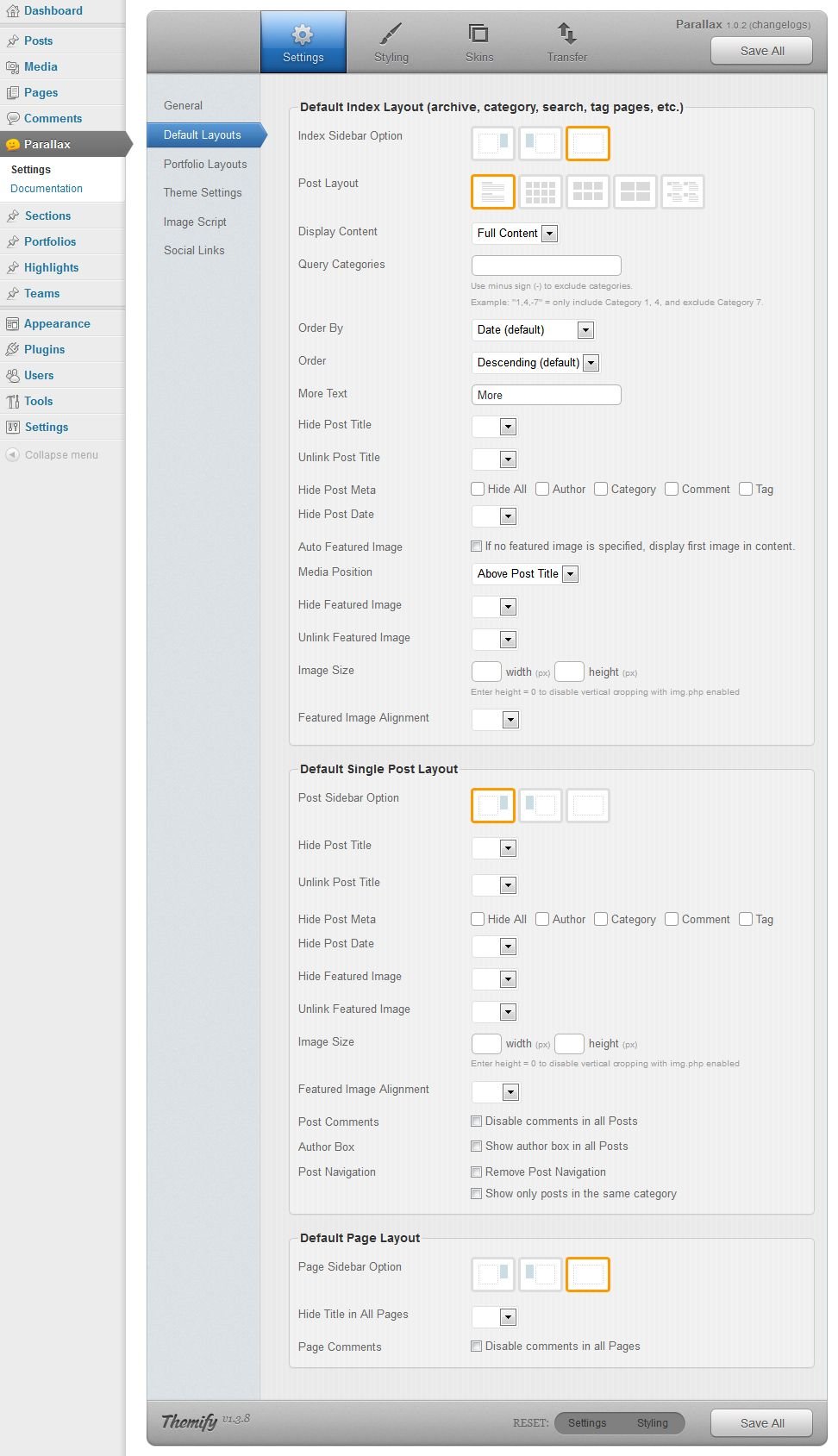
The options of the Settings tab are divided over:
- General
- Default Layouts
- Portfolio Layouts
- Theme Settings
- Image Script
- Social Links
The General section allows you to upload your favicon, enter custom Header and Footer code as well as the settings of your RSS Feed.
With Default Layouts you have the ability to select your default page layout – which can be either one, two, three or even four columns – and set your preferred sidebar position or have no sidebar at all.
In addition, you can enter the dimensions for the thumbnails as displayed on index pages and within single post pages, and hide post details. You can even set a default background color for single posts, which can be changed for individual posts.
The default layouts for the index pages and single entry pages of your portfolio are set at the Portfolio Layouts. You have the ability to set your preferred sidebar options and portfolio layout – which can be either one, two, three or even four columns.
The Theme Settings let you choose between displaying index pages with Infinite Scroll – so without pagination – or with a numbered page navigation.
Here you can also configure the Gallery slider, exclude the RSS Link and Search Form from the page headers, customize the footer text, and set your desired number of Footer columns. For the latter you can opt from zero to four widget areas.
At the Image Script tab you can select your preferred method of image resizing; with Themify’s image script or according to WordPress Featured image settings. With the image script you have also the ability to tweak the way images are cropped.
The Social Links allow you to add and modify the title, link, and image of your social network profiles. You can add as many social profiles as you like and display these in the Social widget area – or one of the other widget areas – with the Social Links widget.
At the Styling tab you can personalize the body, header wrap, body wrap and footer wrap. You can select your preferred background image or color, fonts and colors for theme elements like titles, body text, headings and navigation.
The Skins tab is the place where you select you desired color scheme. You can choose from ten predefined color schemes. You can further personalize the default settings of a specific skin at the Styling tab. Another option is to create a new skin – from scratch or based upon an existing one. Your custom skin will appear on the skins page as an additional theme style.
The Transfer tab facilitates the import and export of your theme settings.
Leave a Reply