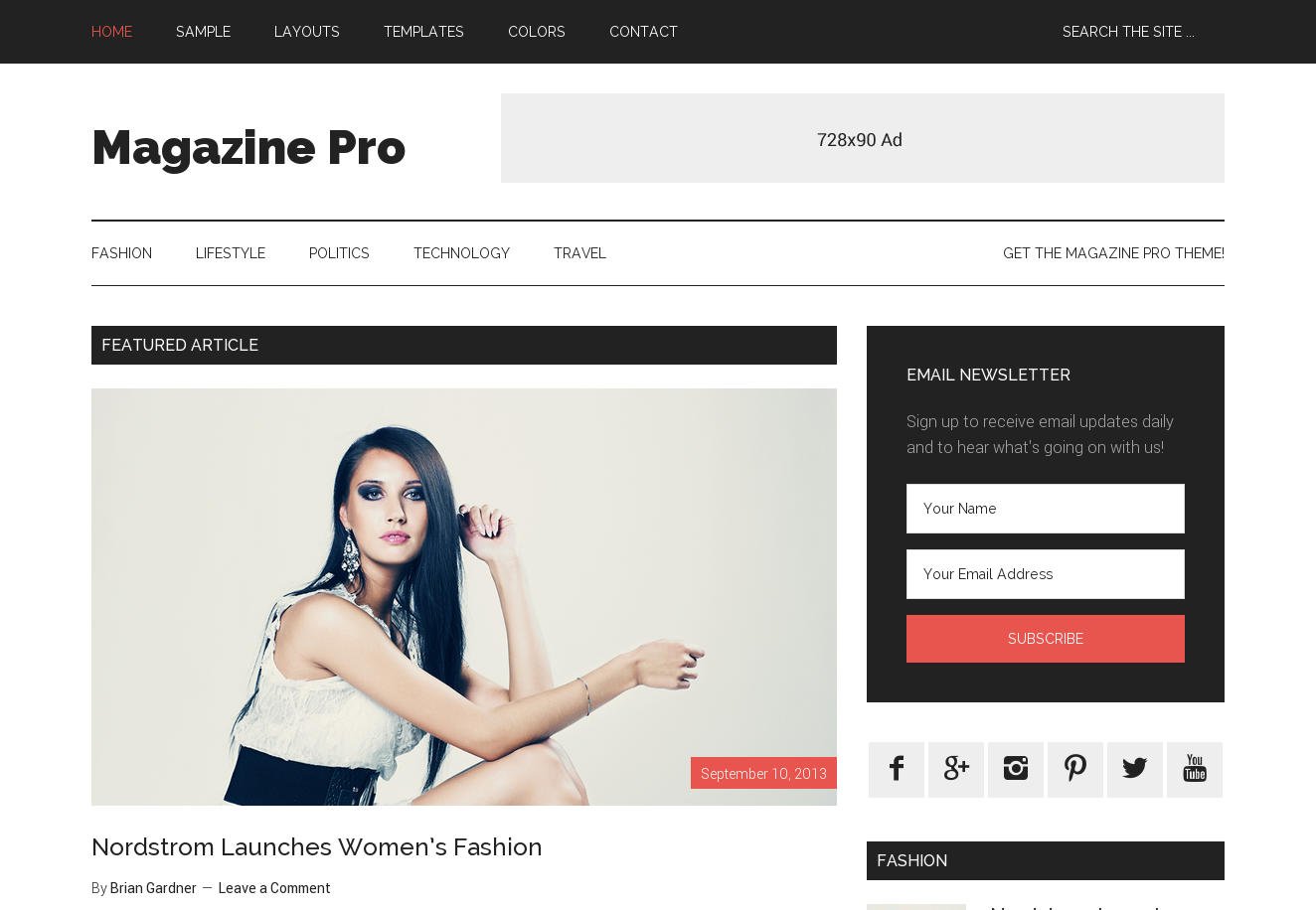
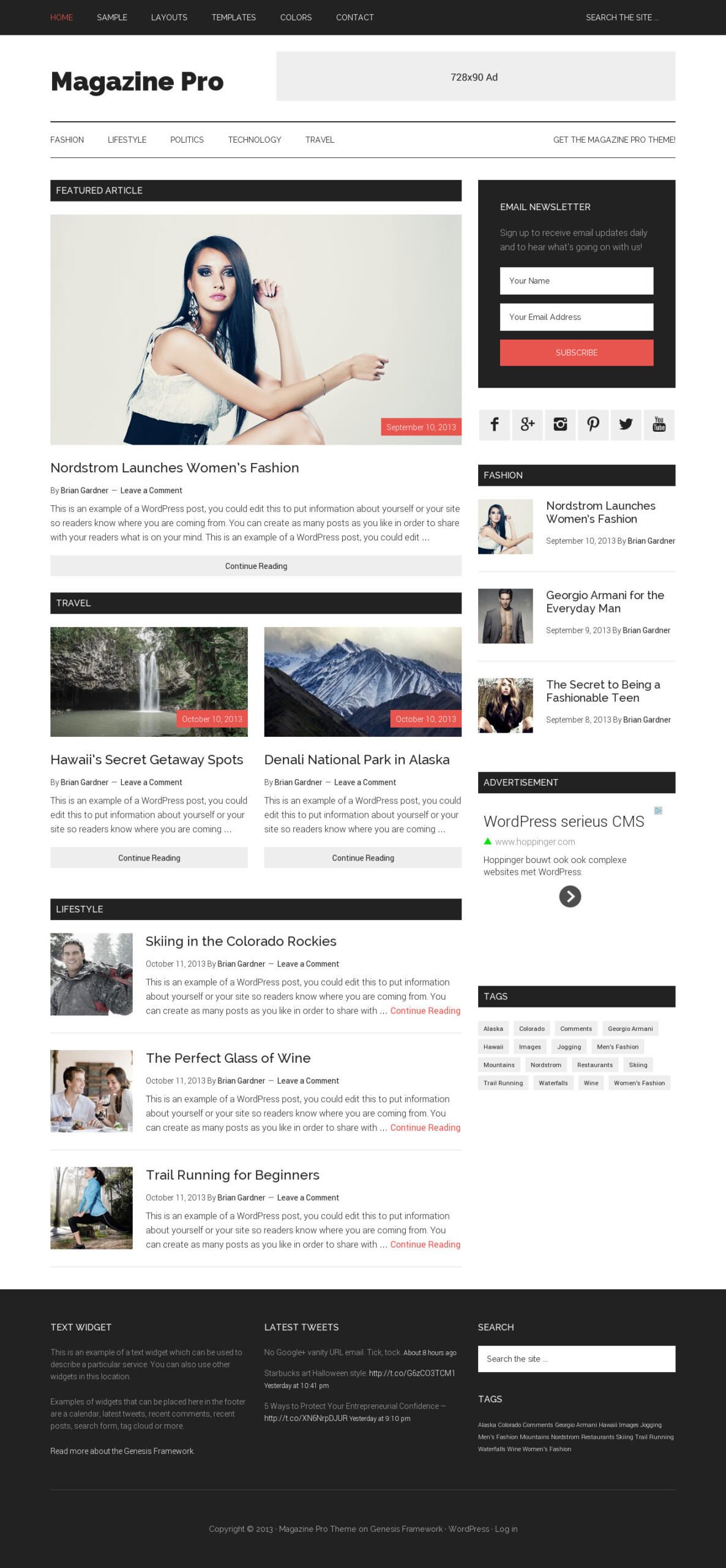
Magazine Pro by StudioPress is a responsive Genesis child theme for online magazine and news sites, featuring a fully widgetized homepage and additional promotional space between posts and the comments area.
The theme supports natively two WordPress 3 menus. The Primary Navigation Menu is a fixed at the top of the page, where it will remain when you scroll down the page. The Secondary Navigation Menu resides below the header. Both menu lists are right aligned.
Another navigation option is adding a custom menu to the Header Right widget area, which will be displayed opposite the logo.
StudioPress Magazine Pro installs with three custom widgets:
- Featured Page
- Featured Posts
- User Profile
With the arrival of version 2.0 of the Genesis Framework, the Genesis eNews and Updates, and Genesis Latest Tweets widgets have been recreated as plugins. These, and other plugins optimized for the Genesis Framework, are available from the WordPress Plugin Directory.
This Genesis child theme incorporates ten widgetized areas:
- Header Right
- Primary Sidebar
- Secondary Sidebar
- Home – Top
- Home – Middle
- Home – Bottom
- After Entry
- three Footer columns
The contents of the After Entry area shows up between the blog posts and the comments.
To create your custom homepage, simply add the widgets of your choice to the four Home widget areas; Home Top, Home Middleand Home Bottom.
In the demo, StudioPress added a Genesis Featured Posts widget to all three of these areas. Adding the Genesis Responsive Slider to the Home Top widget area is of course also an option.
In case you prefer a traditional blog feed on the home; just leave the home widget areas empty.
Magazine Pro offers the following page templates:
- Default
- Archive
- Blog
- Landing
The Genesis panel comprehends three pages:
- Theme Settings
- SEO Settings
- Import/Export
When you do not see the Genesis SEO page, you most likely have activated a plugin to handle your SEO.
The Genesis SEO Settings allow you to tweak the default SEO options concerning the Document Title, Homepage Settings, Document Head Settings, Robots Meta Settings and Archive Settings.
Furthermore, every post, page and term has its own SEO Settings. When you are just starting out with SEO, just leave the settings in their default state.
The Import/Export page lets you create a file in JSON format for backup and transfer purposes. You can export just the Theme Settings and/or the SEO Settings. Of course, you can also upload a JSON file.
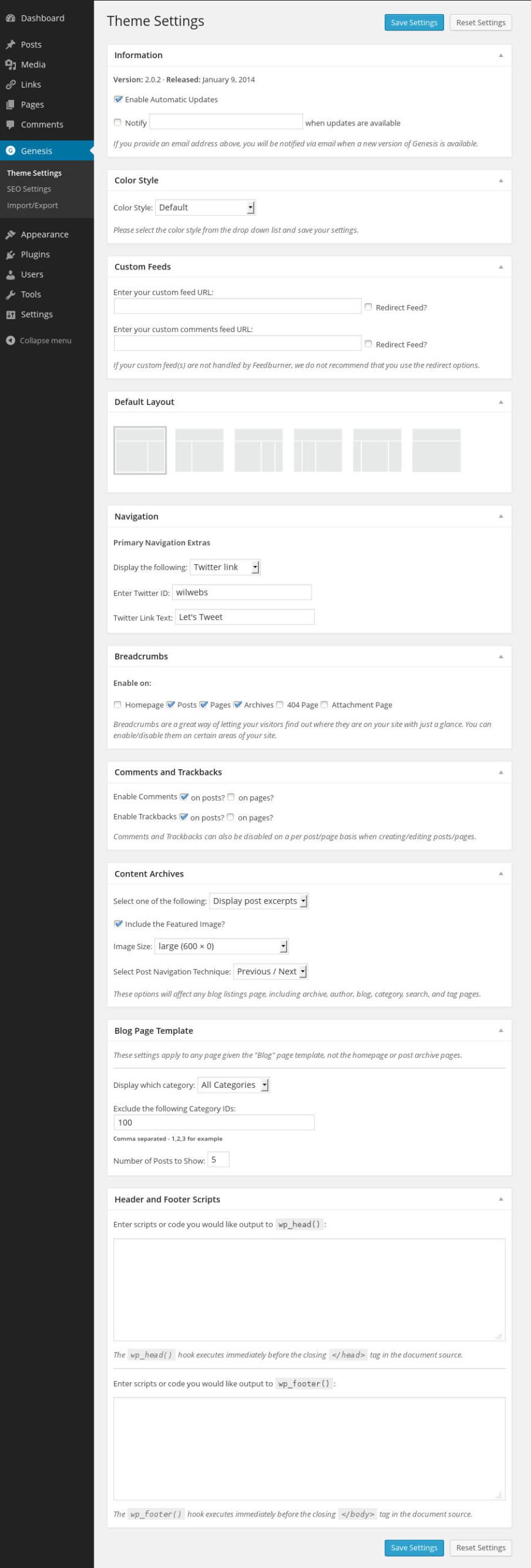
The Theme Settings page serves dialogue boxes to help you configure the theme:
- Information
- Color Style
- Custom Feeds
- Default Layout
- Navigation
- Breadcrumbs
- Comments and Trackbacks
- Content Archives
- Blog Page Template
- Header and Footer Scripts
The Information box displays the version number of the Genesis Framework. Here you can also subscribe to e-mail notifications when updates becomes available.
Magazine Pro offers four predefined Color Styles; the default Red, Blue, Green, and Orange.
When you use Feedburner for your feeds, you can enter the custom feed URLs for new posts and comments here at the Custom Feeds.
You can set the Default Layout to one column (just the content area), two or even three columns. In case of two columns, you can choose between a left and a right sidebar. With a three column layout, you can opt for a sidebar at each side or have both sidebars at the same side of the content area. You have the ability to assign a different page layout to individual posts and pages.
The Navigation options allow you to enable an Extra element at the right side of the Primary Navigation. You can choose from Today’s Date, RSS Feed Links, Search Form and a Twitter Link.
When you like to have Breadcrumbs at the top of the content area, you can check here on what pages these crumbs should be displayed.
The check boxes at the Comments and Trackbacks give you an easy way to customize the visibility of comments and trackbacks on posts and pages.
At the Content Archives you can set your preferences for the blog page listings. You can choose to display the post excerpts or the post content – when applied, until the Read More tag. When you opt for the post content, you can limit the content to a certain number of characters.
Enabling the Featured Image on index pages is a matter of checking the box in front of “Include the Featured Image?”. In addition, you can select your desired dimensions for the Featured Image.
Last but not least, you can set your preferred page navigation within the Content Archives box. You are offered two choices: Previous/Next, and Numeric.
The Blog Page Template section lets you configure what categories will be displayed on the blog. You can select a specific category from the drop-down menu, exclude category IDs, and set the number of posts per page.
The Header and Footer Scripts section serves two text boxes where you can enter your custom scripts for the page headers and footers, like for example Google Analytics.
Very informative, thanks! Do you happen to know if there are any functional differences between Lifestyle Pro and Magazine Pro? I am deciding between the two themes and am having a hard time picking one. Thanks
Hello Abby,
Basically, all StudioPress themes offer the same functionality since these are all child themes of the Genesis Framework.
The most significant differences from my perspective are:
1. the design – stretched (Magazine) versus boxed (Lifestyle)
2. the composition of the widget areas on the homepage – Lifestyle {Top, Middle, Bottom Left/Right), Magazine {Top, Middle, Bottom)
Of course, when you prefer to use the theme with the blog feed on the home page, the latter is not really relevant.
Hope this helps,
Wil
great, thanks Wil!